Q131. Drag and Drop Question
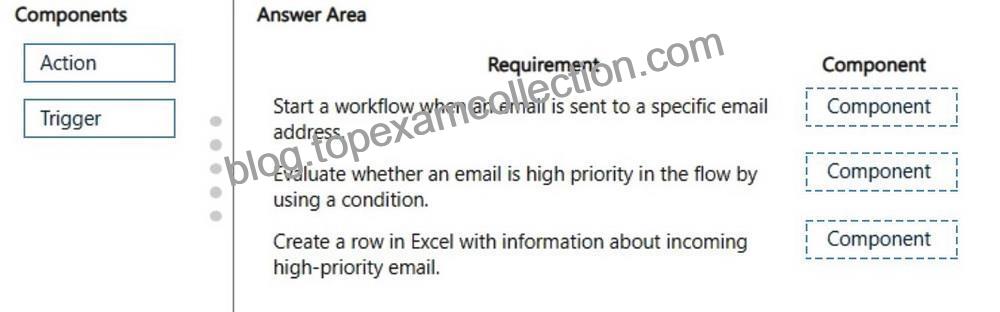
A company uses Microsoft Power Platform to manage support tickets.
Customers submit support requests by sending an email to a support email address.
All high-priority emails must be logged into a Microsoft Excel sheet for historical purposes.
You need to identify the components that are required for logging the emails in Excel.
Which components should you use? To answer, drag the appropriate components to the correct requirements. Each component may be used once, more than once, or not at all. You may need to drag the split bar between panes or scroll to view content.
NOTE: Each correct selection is worth one point.
Explanation:
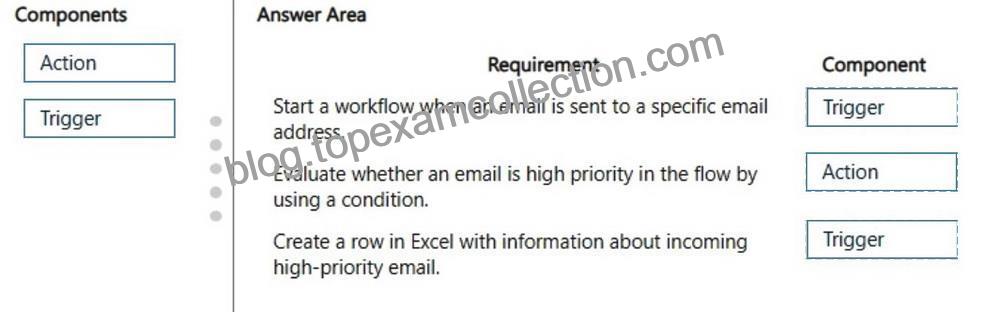
Box 1: Trigger
Start a workflow when an email is sent to a specific email address.
You should use an Automated Cloud Flow in Microsoft Power Automate.
The exact trigger to use is When a new email arrives (V3) (from the Office 365 Outlook connector).
You can specify the exact target email address and use advanced options to filter for messages sent to that specific address.
How to set it up:
Go to Microsoft Power Automate and create an Automated cloud flow.
Search for and select the trigger: When a new email arrives (V3).In the trigger settings, click Show advanced options.
Set the To field to your specific email address.
Add your workflow steps/actions.
Box 2: Action
Evaluate whether an email is high priority in the flow by using a condition.
You should use the Condition action.
In Power Automate, the Condition action acts as a control statement that evaluates dynamic data (such as an email’s importance) to determine the next steps in your flow.
To evaluate an email’s priority:
Add a Condition action immediately after your email trigger.
Set the left operand to the dynamic content of the email (e.g., Importance or Subject).
Set the middle operator to is equal to
Set the right operand to High.
This directs your flow down two distinct paths: If yes (for high-priority items) and If no.
Box 3: Trigger
Create a row in Excel with information about incoming high-priority email.
You should use Microsoft Power Automate to trigger an action when a high-priority email arrives and automatically create a row in Excel.
Recommended Workflow
SetupTrigger: Use the Outlook “When a new email arrives (V3)” trigger.
Filter: Set the Importance parameter to High within the trigger settings.
Action: Connect to Excel Online using the “Add a row into a table” action.
Reference:
https://learn.microsoft.com/en-us/power-automate/email-triggers
https://learn.microsoft.com/en-us/power-automate/use-expressions-in-conditions
https://www.advantage.co.uk/microsoft-dynamics/microsoft-power-platform-partner/power-automate